![CHOICE-CyberSolutions_white.png]](https://support.choicecybersolutions.com/hs-fs/hubfs/CHOICE-CyberSolutions_white.png?height=40&name=CHOICE-CyberSolutions_white.png)
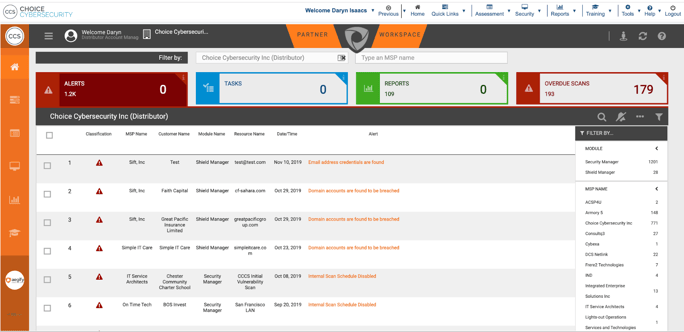
 Navigate to the Login screen for your RiskTitan portal. Sign in with your login credentials.
 Hover over the orange menu bar on the left side of the RiskTitan page
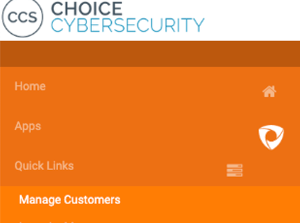
 Select Manage Customers. The Manage Customers page will display a list of your
  Select the “Add New Customer” button i the black menu bar above the customers list. It is located to the right of the search button and is a gray circle with a black + icon in the middle.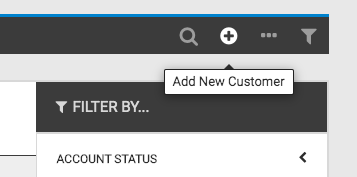



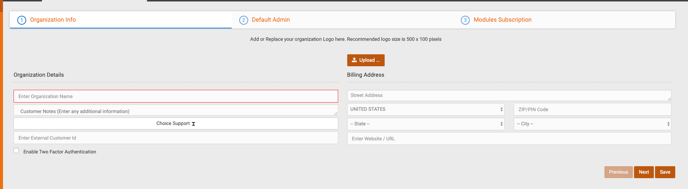
- Select the title for the new customer.
- Enter customer first and last name.
-
Enter customer contact email and customer login email.
-
BEFORE PROCEEDING, PLEASE REFER TO THE FOLLOWING DEFINITIONS
-
Customer contact email will receive the email notifications from RiskTitan.
-
Login email is only used for logging into the RiskTitan portal.
-
Both emails can be the same, but do not have to be.

-
-
 Next, add modules based on the services provided to the customers. To do this, find the desired module in the “modules” column. Here, I want to add “Configuration and Policy Checks”. Click the plus icon next to the module to be added.
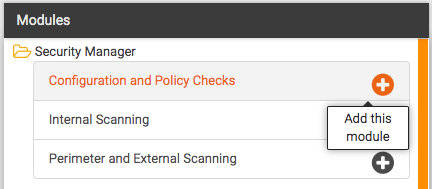
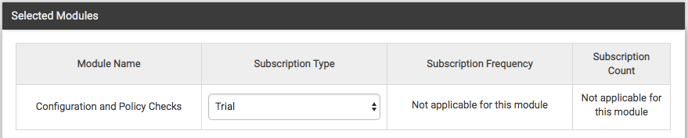
The module will appear in the “selected modules” column now.
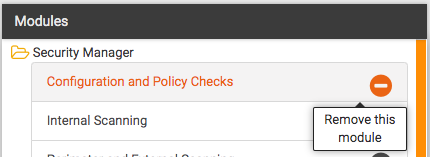
If you would like to remove a module, select the minus icon next to a module which you’ve already added.
The removed module will no longer appear in the “Selected Modules” column.
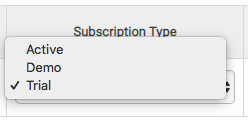
Open the “Subscription Type” menu to change the subscription type.